

QuraSI Blog
Practical Guides

Connect Booking, Email & Customer Records

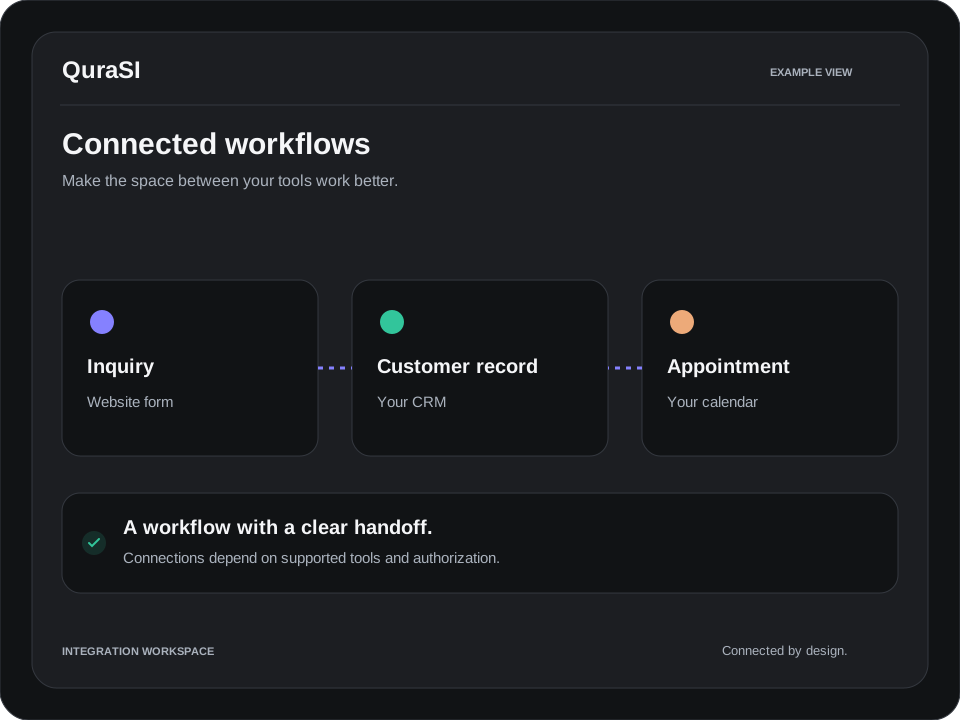
Map a simple path from inquiry to appointment without copying the same customer details between your inbox, calendar, and CRM.

A customer sends an inquiry. You copy their details into a contact list, send a booking link, check your calendar, and later search your inbox for the original conversation. The tools may all work individually while the process between them remains manual.

Start by defining one journey from inquiry to appointment. You do not need to connect every app at once. A small, reliable workflow is easier to understand and maintain than a collection of connections nobody can explain.

Choose the main record

Decide where customer information belongs. For many businesses that is a CRM; for others it may be an existing booking system. Write down which system owns the customer record and which owns appointment availability.

  • Customer name and preferred contact details.
  • Requested service and relevant notes.
  • Inquiry source and follow-up owner.
  • Appointment status and next action.

Avoid collecting information just because a form can ask for it. Each field should help you handle the inquiry or deliver the service.

Define the trigger

A trigger is the event that starts the workflow: a completed form, a confirmed booking, or a staff-approved status change. “A new email arrives” may be too broad if your inbox receives receipts, promotions, and unrelated requests.

For example, a service inquiry form could create or update a contact record, notify the responsible person, and send an acknowledgment with the correct next step. That is a proposed workflow, not a claim that every tool supports it.

Map the information

Match the source fields to the destination fields. Check whether a phone number is required, how time zones are stored, and whether an existing contact should be updated. Use a reliable identifier to reduce duplicate records and consider what should happen if two people share an email address.

Review integration availability and subscription requirements before buying software. A built-in connection may cover your needs; another process may require an integration service or a custom connection.

Handle changes

A confirmed booking, a cancellation, and a reschedule are different events. Make sure one does not accidentally create several appointments or trigger repeated follow-ups. Decide what happens if a connection stops working and who receives an error notification.

  • Test a new customer and an existing customer.
  • Test an incomplete form and an invalid email.
  • Test a cancellation and a reschedule.
  • Confirm the record and calendar agree.

Keep a simple handoff

Document the trigger, the systems involved, the expected result, and the person responsible when something fails. Review a few real records after launch to make sure the workflow behaves as intended.

QuraSI helps scope supported connections around your existing tools. Tell us what you use or read how to choose your first automation.

News & Blog
Latest Tips & Articles

Keep Exploring

Online Presence
Get Found on Google, Apple Maps, Yelp & Bing
Read more
AI Receptionists
What an AI Receptionist Can Handle
Read more
Connected Tools
Connect Booking, Email & Customer Records
Read more